
Installation#
Prerequisites#
The following dependencies need to be installed:
acl (for
setfaclexecutable)curl
Docker >= 19.03
Docker compose >= 1.29
python >= 3.10
git
We suggest to check out the official Docker documentation on how to install the Docker dependencies.
On a Debian system, you can install the requirements with:
sudo apt install curl docker.io docker-compose git python3-pip
Next, add your user to the docker group so that the user is allowed to execute docker commands.
sudo usermod -aG docker $USER
Note
You might need to log out and log in again in order to gain the new group (see also post installation hints).
Now clone the LinkAhead deployment repository (if you have not already):
git clone https://gitlab.com/linkahead/linkahead-control.git
Then, install additional Python dependencies using the --break-system-packages option or using a
virtual environment:
cd linkahead-control
pip3 install -r requirements.txt
Start#
Now, you can run
./linkahead start
This will download a Docker image from the internet (takes a moment) and start LinkAhead.
Once the log output says Starting org.caosdb.server.CaosDBServer application the installation is
done and LinkAhead is running with the default configuration.
You can now reach the web interface at https://localhost:10443.
On first access, your browser may warn you that the connection is insecure because the website uses
a self-signed certificate. Select Accept the risk to continue.
On the welcome page, you will be asked to log in. Per default, the preconfigured admin credentials
are username admin and password caosdb. The web interface tutorials can be found in the tutorial section, here.
Use ./linkahead stop to stop LinkAhead and ./linkahead --help will inform you about further
options.
Using services#
For automatic restart and certificate renewals it may be a good idea to use services. You might want to look at systemd documentation if you are not familiar with services.
You can find templates for services and timers in utils/install. Also see notes under “Using
services” in README_SETUP.md.
$ systemctl start linkahead.service
To shut down LinkAhead, analogously type systemctl stop linkahead.service.
Configuration#
See Configuration for more details on how to configure your profile.
Troubleshooting#
Unable to fetch some archives#
If apt finishes with this error, run apt update and try the installation again.
Old data still exists#
Data is kept in persistent docker volumes. You can remove existing data the following way:
Warning
This cannot be undone. Make sure you have backups.
Have a look at the docker volumes: docker volume ls. The name depends on your profile, but
typically you want to remove the following two:
docker volume rm default_caosdb-sqldata default_caosdb-caosroot
Strange characters in my browser#
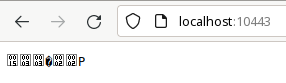
If you see strange characters in your browser when trying to access LinkAhead, you should explicitly
specify https, like so: https://localhost:10443 If you try to access LinkAhead via plain http
(http://localhost:10443), your browser will receive encrypted content and display it like this:
docker-compose is not recent enough#
You can install an up-to-date version with (at least 1.27 is required):
$ pip install --user docker-compose
Extroot from NFS mounts fails#
If LinkAhead fails to start when trying to use an NFS mount as extroot, possibly with errors like
Cannot create container for service caosdb-server: invalid mount config for type "bind": stat /data/foo/bar: permission denied,
then restrictive access permissions may be the reason. In this example, the directory
/data/foo/bar could not be accessed, because the mounted NFS resource /data/foo/ was missing
permissions.
As a workaround, you could mount /data/foo/bar directly instead of relying on the /data/foo
resource:
/etc/fstab#server:/volume/foo/bar /data/foo/bar nfs defaults 0 0
Or you could create a local bind mount which exposes /data/foo/bar
/data/foo/bar to /my_extroots/bar, where /my_extroots/ should be
readable to root.## mount --bind /data/foo/bar /my_extroots/bar