
Get tabular data#
In this short tutorial you will retrieve structured tables from LinkAhead with the SELECT
query and download the result as a spreadsheet. It builds directly on the search concepts
introduced in the tutorial Finding data in LinkAhead.
Prerequisites#
You need access to a LinkAhead instance with a web interface, with the demo data loaded.
For example the demo server at https://demo.indiscale.com.
Alternatively you can use a LinkAhead instance which you installed locally or which was provided by your university or company. In this case, if your instance does not contain the data used in the LinkAhead demo, you will need to adjust the queries to match your own data.
Read‑only access is sufficient, no editing rights are required.
Make sure you can open the LinkAhead web interface and see the query field at the top of the page (before you start typing any query).
Retrieve a simple table#
Click into the search bar and type:
SELECT price, electric FROM Guitar
Press Enter or click on the search 🔍 icon.
You will see a table with two columns (price, electric):
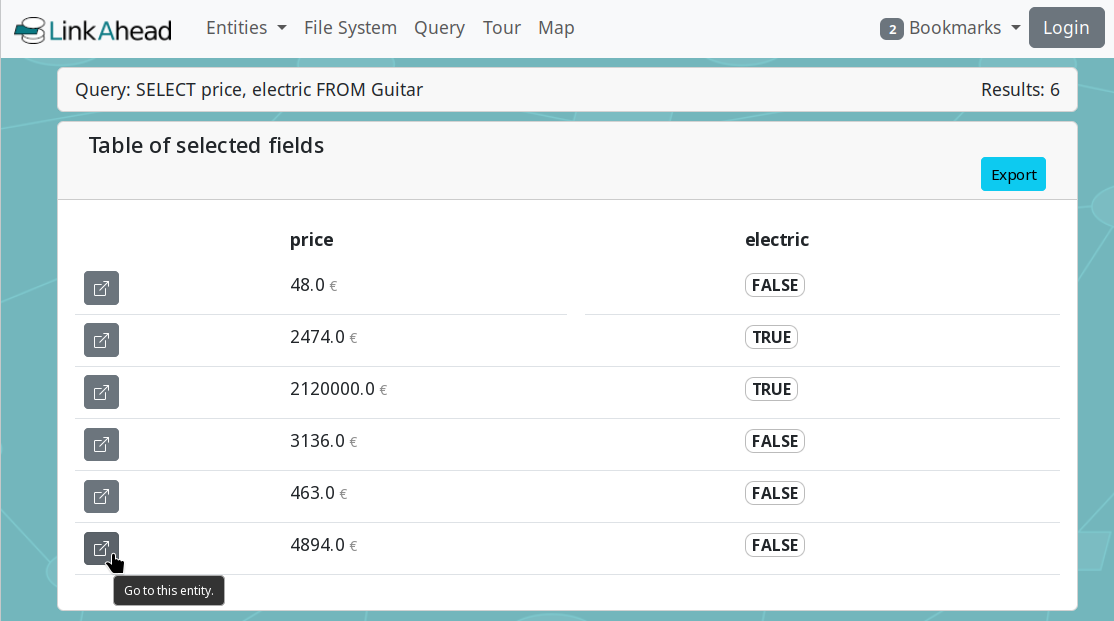
The SELECT result#
Note
SELECT tells LinkAhead which properties you want (price and if the guitar is electric), and
FROM Guitar tells it to look at all records of the Guitar RecordType.
To view the record of a row in detail, click on the link icon at the start of that row.
Filter the table data#
Now, add a filter after the FROM clause:
SELECT price, electric FROM Guitar WITH price > 1000 AND electric = TRUE
Now the table only contains guitars that cost more than 1000 and are electric. Filtering in
SELECT queries works exactly as described in the
tutorial Finding data in LinkAhead.
As with FIND queries, you can also filter tables for references:
SELECT date, quality_factor FROM MusicalAnalysis WHICH REFERENCES A Guitar WITH electric = TRUE
Each row of the resulting table now corresponds to one MusicalAnalysis Record which has an electric guitar.
Referenced properties#
To list properties of referenced records, enter this query:
SELECT quality_factor, MusicalInstrument.name, MusicalInstrument.price FROM MusicalAnalysis
Your result is a table which not only shows data of the selected MusicalAnalysis Records (the
quality_factor), but also data of Records referenced by each analysis.
To dig even deeper into the data, you can also nest the references:
SELECT quality_factor, MusicalInstrument.manufacturer.name FROM MusicalAnalysis
Download the table#
You can export a table by clicking on the Export button at the top of the table.
In some installations you can choose between several export formats (like “TSV” or “XLSX”), although not all may be available if you are not logged in. Download the file to your computer. You can now open it with your favorite tools to analyse, plot, or share your data.
Quick cheat‑sheet#
Step |
Command |
What you’ll see |
|---|---|---|
Select columns |
|
Table with |
Add a filter |
|
Only rows matching the condition |
Follow a reference |
|
Only rows that reference a guitar |
Referenced property |
|
Data from referenced instrument |
Download |
Click Export → CSV/XLSX |
Spreadsheet file download dialog |
What’s next?#
Explore the full list of operators (LIKE, IN, date ranges, …) in the
LinkAhead Query Language specification.