
First Steps with the Web Interface#
By the end of this tutorial you will have logged in to the LinkAhead demo instance, oriented yourself in the interface, and opened a single entity to inspect its data and references.
Learnings
Navigate the LinkAhead web interface.
Open and read an entity’s properties and references.
Prerequisites#
Access to the LinkAhead demo instance. No installation required.
Familiarity with LinkAhead’s data model (Records, RecordTypes, Properties) is helpful but not required – see Data Model and Schema for background.
Note
Prefer to click over reading? Select Tour in the demo website’s navigation bar to start the built-in interactive tour. You can return to this tutorial at any time.
Log in#
Open demo.indiscale.com in your browser.
Click the Login button in the top-right corner of the navigation bar.

Enter the demo credentials – username:
admin, password:caosdb– and confirm.
Note
Without logging in you can already browse some public entities. This tutorial assumes you are logged in to see the full interface.
Get oriented#
After logging in, the navigation bar shows the main sections of the interface:

① Entities: browse all entities in the database: Records, RecordTypes, Properties, and Files.
② Query: search and filter data using the query language, covered in the Query tutorial.
③ Tour: starts the built-in interactive tour.
The remaining entries (Edit Mode, File System, Curator Tools, User Administration, Bookmarks, Map, and others) cover editing, administration, and advanced features that are out of scope for this tutorial.
Browse entities#
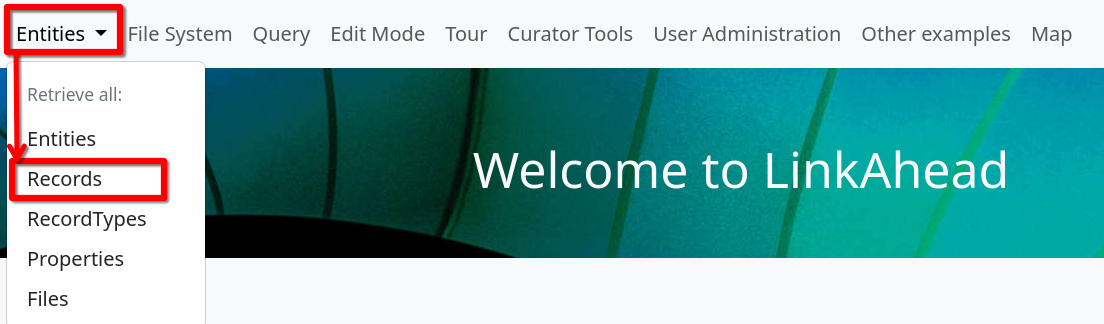
Click Entities in the navigation bar and select Records from the dropdown.
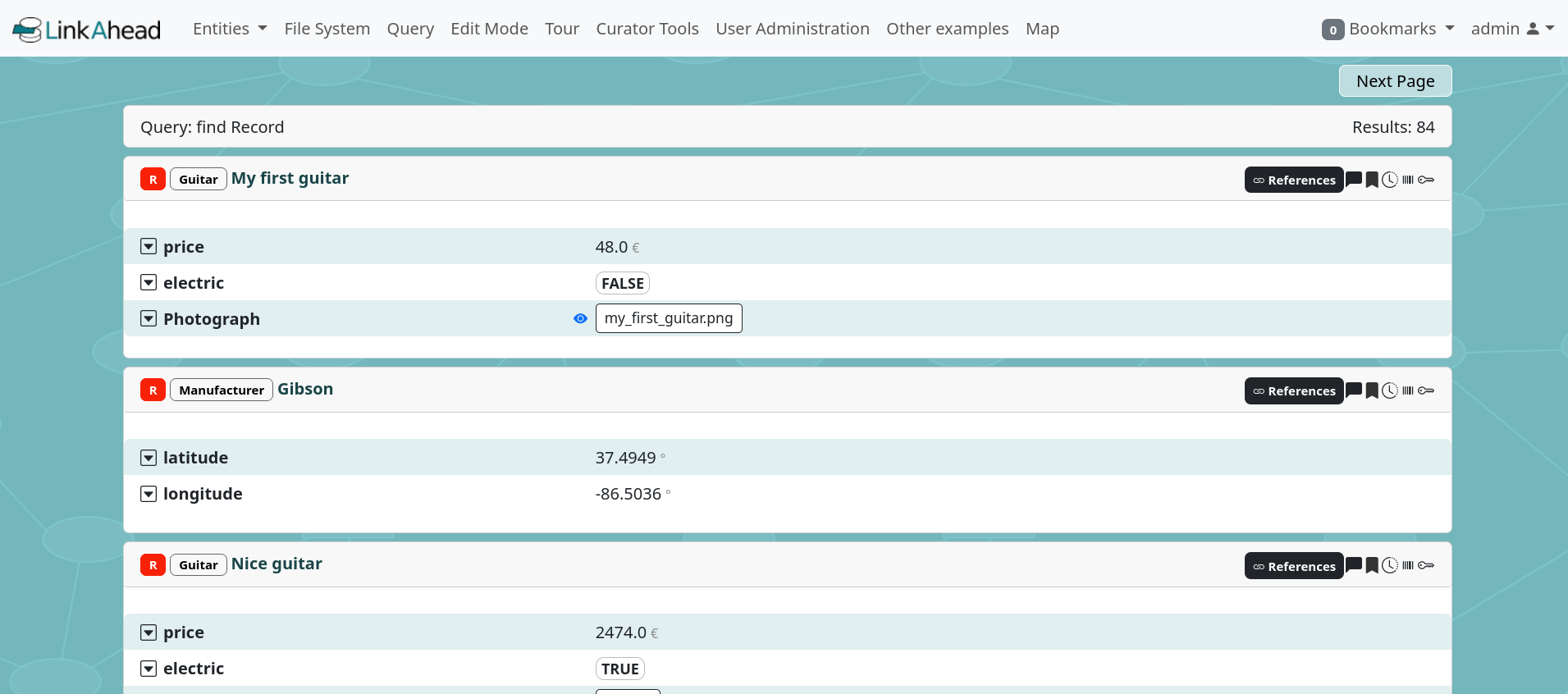
A list of records is shown. By default, ten entities are shown per page. Use the Next Page and Previous Page buttons to navigate.
Explore the other entries in the Entities dropdown to see the different entity types available in this instance.
Open a single entity#
In the record list, click the name of any record to open a details view for that entity.

The entity card shows:
The ① RecordType (for example,
Guitar) and the ② entity name in the header.Each ③ property as a row: the property name on the left, its value on the right.
④ Reference properties (for example,
Manufacturer) whose values are clickable links to the referenced entity – click them to navigate directly to it.
To see which other entities reference this record, click the ⑤ References button. This leads to a list of all records that point to this entity.
Next steps#
You have navigated the web interface and inspected an entity. From here you can:
Create and edit entities – follow the Edit Mode tutorial.
Search and filter data – follow the Query tutorial.
For further information, read the WebUI Explanation pages.