
The Edit Mode#
Note
This page has been migrated from the old documentation, and has not yet been fully revised. There might be inconsistencies or errors when using with current LinkAhead versions.
Entities in LinkAhead can be changed, created, and deleted using the Edit Mode. In the
following sections, you’ll learn how. You should be familiar with the concepts of Records,
RecordTypes, and properties in LinkAhead — if not, see the
data model documentation first.
For background on the Edit Mode’s design and concepts, see Understanding the Edit Mode.
Getting started#
Learnings
How to activate and deactivate the Edit Mode
What the Edit Mode toolbox is and where to find it
In usual setups of LinkAhead, you have to log in to use the edit mode. Afterwards, you can access it by clicking on the button in the top menu as shown below:

After entering the edit mode, the button changes its text to Leave Edit Mode. Clicking here terminates the edit mode.
When you have entered the edit mode, you’ll see the edit mode toolbox appearing on the right-hand side of your screen:
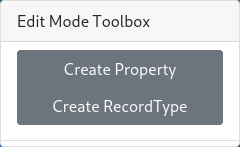
You’ll learn more about its contents in the following sections. Right now it only contains the options for creating a new RecordType or property which we’ll explain in Extend your schema: Add RecordTypes and properties.
Changing an existing entity#
Learnings
How to edit property values on an existing entity
How to add and remove properties and parent RecordTypes on a Record
We’ll start by changing and updating existing entities. First, find the entity you want to change and enter the edit mode. You’ll see an edit button in the top right of the entity card:
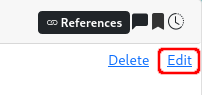
After clicking on this button, the edit menu for this entity is opened as shown below for a guitar Record from the demo. You’ll also note that the edit mode toolbox changes its contents: It now harbors two lists of the existing properties and RecordTypes.
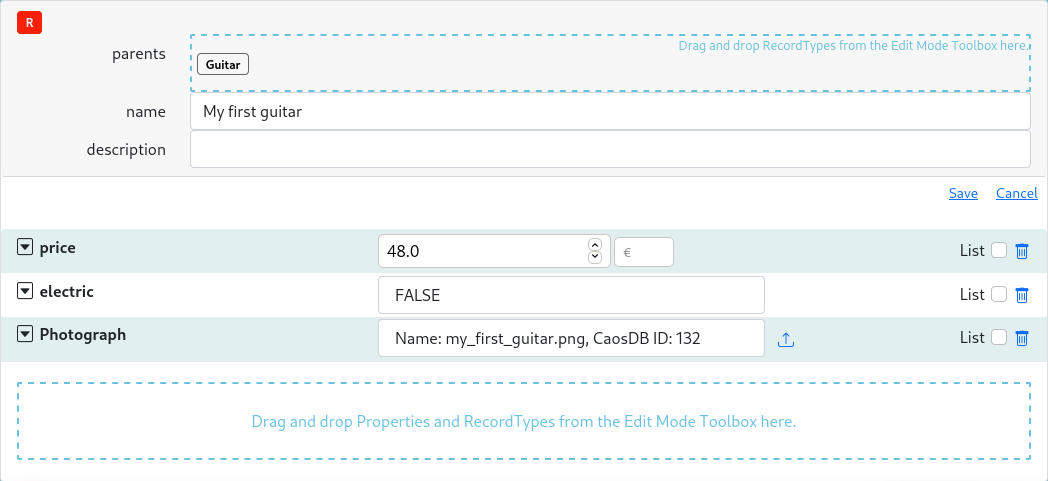
Property values can be changed in the entity card directly; additional parents can be added by dragging them from the list of RecordTypes to the corresponding area at the top of the Record. Similarly, properties can be added by dragging properties (or RecordTypes) from the list in the edit mode toolbox to the corresponding area at the bottom of the Record. Properties and parents can be removed from the entity by clicking on the trash-can symbol.
To edit the value of a reference property, click the pencil symbol to the right of the property. The dropdown with valid values is then loaded on demand:

When many Entities are valid candidates for a reference property, not all may appear in the dropdown. In that case a warning is shown and an additional pencil button lets you enter an ID manually (click the pencil button, type the ID, press Enter). You can look up the ID of any entity via the bar code icon in the upper right corner of its entity card.
Changes will be applied after clicking on Save or can be discarded
entirely by clicking Cancel. Existing properties and RecordTypes
can be edited in the same way. See
Understanding the Edit Mode for key
differences between editing Records and RecordTypes.
Creating a new Record#
Learnings
How to create a new Record of a given RecordType
How to assign property values and additional parents when creating a Record
If you want to create a new Record of a given RecordType, visit that
RecordType and enter the edit mode (if your new Record will have more
than one parent, visit any one of them - you can add the others
later). A new Record is then created by clicking on the +Record
button in the top right of the RecordType:
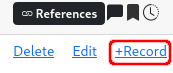
Clicking here opens an entity card with an edit menu for the new
Record similar to the one discussed in Changing an existing entity. In
here, you can enter the name and the description of your new Record,
assign values to its properties, and add further parents or properties
from the corresponding lists in the edit mode toolbox. The new Record
is inserted by clicking Save.
Extend your schema: Add RecordTypes and properties#
Learnings
How to use the Edit Mode toolbox to create new RecordTypes and properties
You can extend the schema of your LinkAhead instance by creating new RecordTypes and properties directly from the WebUI. This is done by clicking on the “Create Property” and “Create RecordType” buttons in the edit mode toolbox:
New RecordType#
Learnings
How to create a new RecordType with a name, description, and parent RecordTypes
How to add properties to a new RecordType
When creating a new RecordType, a RecordType card is added to the entity panel, similar to the “New Record” explained above:
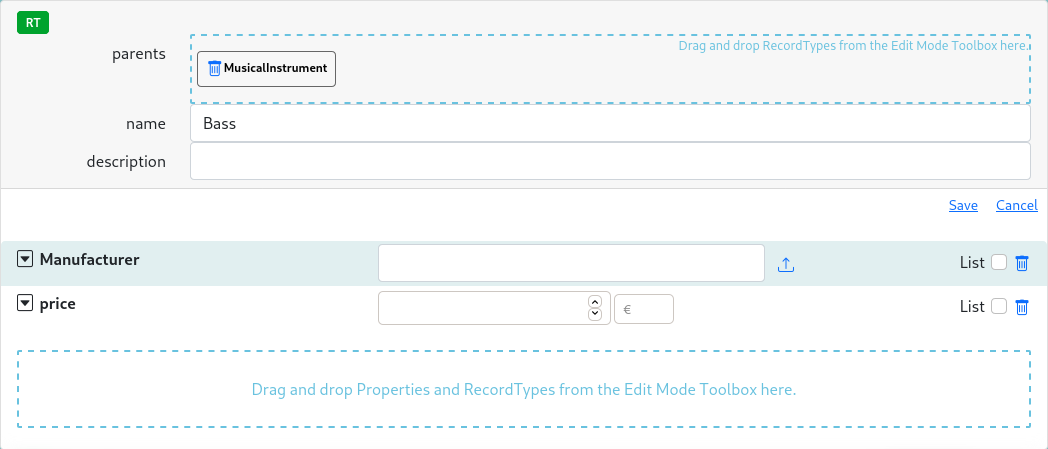
As above, you can enter a name and a description. Don’t reuse existing names, if it can be avoided.
You can add parent RecordTypes by dragging existing RecordTypes on the “parents” zone above the “name” field.
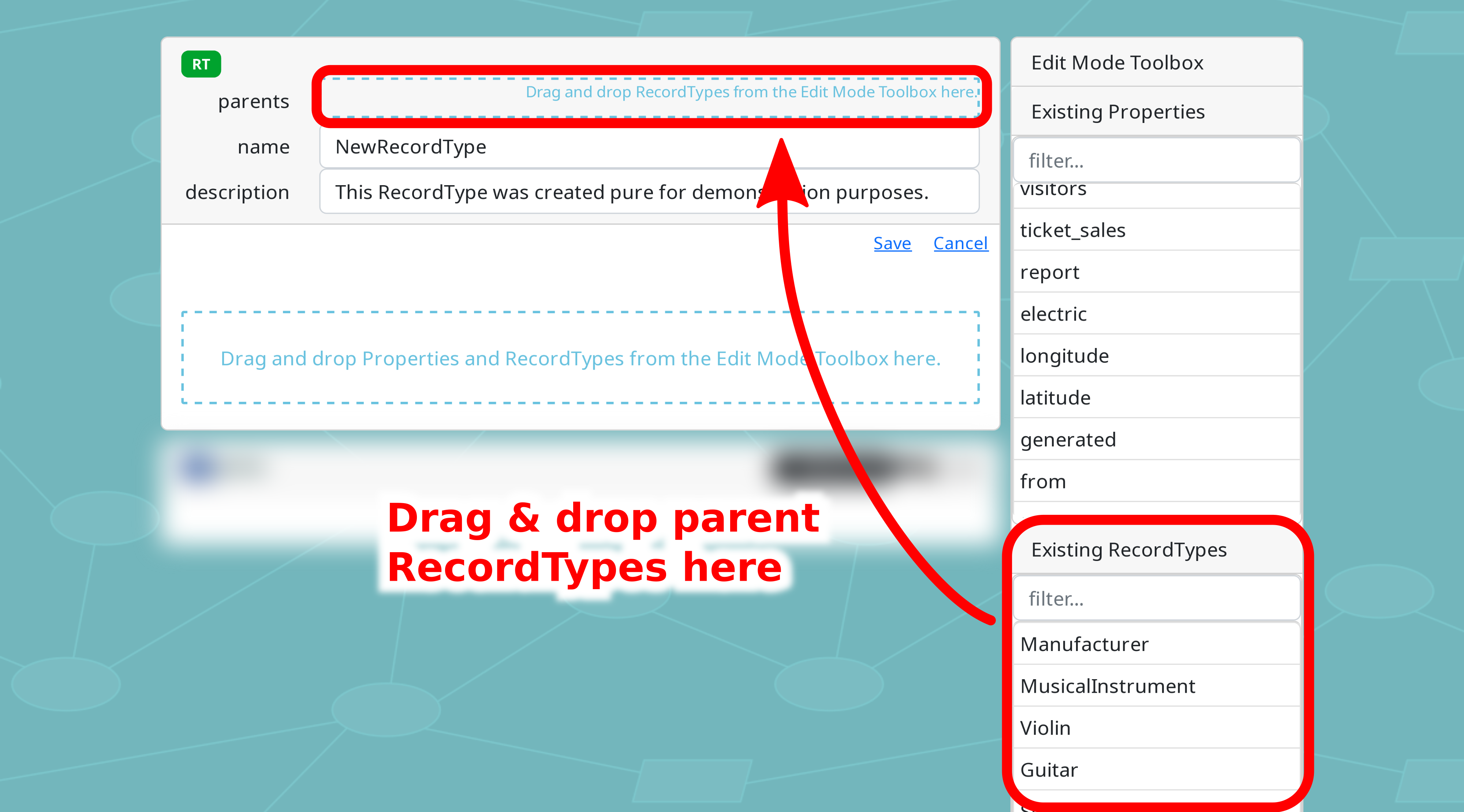
Note
Adding parents does not automatically add the parents’ properties yet. You will have to do this manually.
Add properties as described above by selecting them from the lists in the edit mode toolbox and dragging them to the property area in the new RecordType.
Click “Save” to save your newly created RecordType, or abort with the “Cancel” button.
New property#
Learnings
How to create a new property with a chosen name and datatype
When creating a new property, a property card shows up:
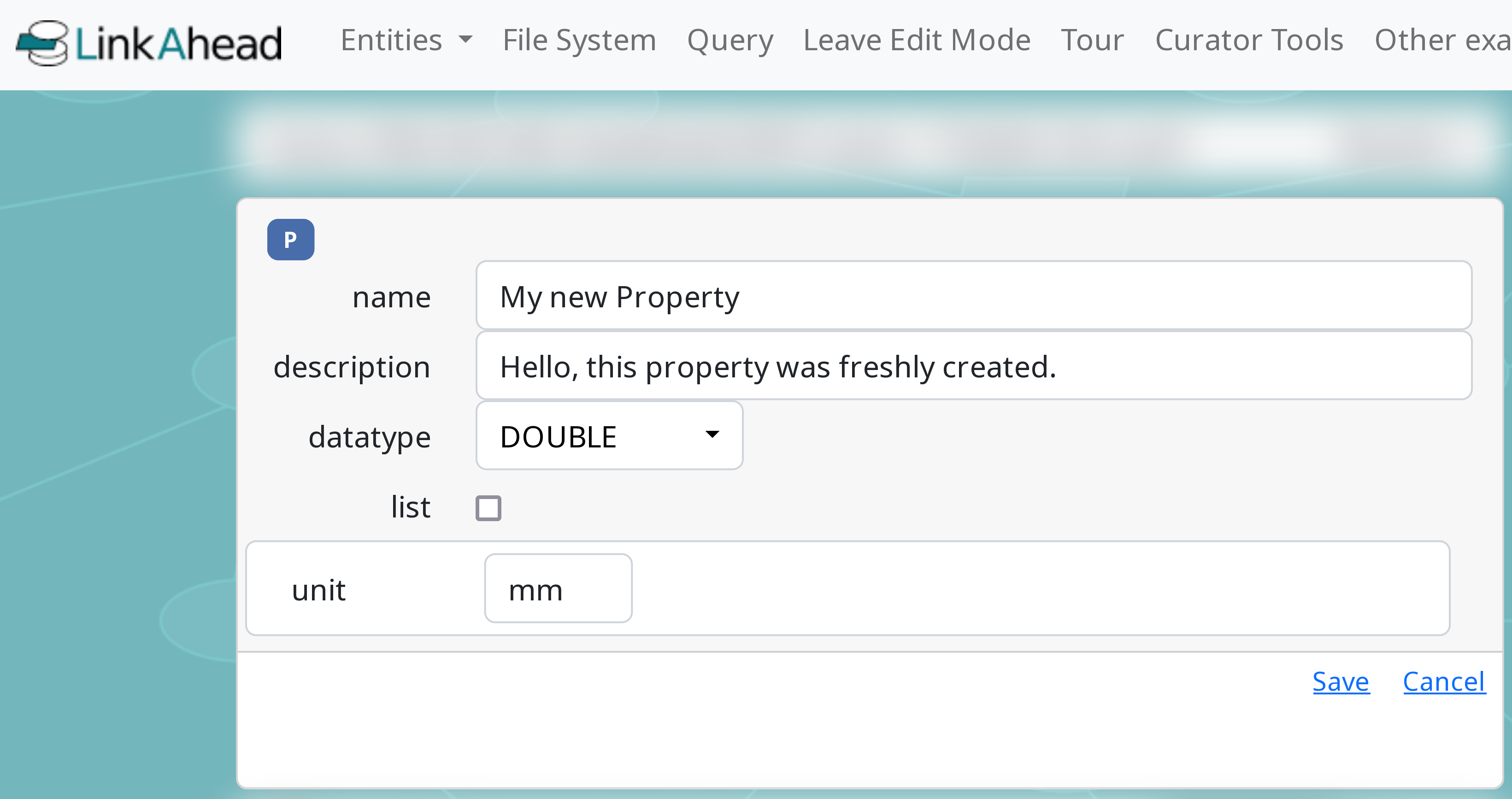
As above, you can enter a name and a description. Don’t reuse existing names, if it can be avoided.
Set the datatype. See Understanding the Edit Mode for a description of each available datatype.
If you want the new property to be a list, check the checkbox.
Click “Save” to save your newly created property, or abort with the “Cancel” button.
Note
When creating a property with datatype INTEGER or DOUBLE, an optional unit field appears
(for example kg or mm).
Note
After having created a new RecordType or property, you may have to leave and re-enter the edit mode for the new entity to appear in the lists of properties or RecordTypes in the edit mode toolbox.
Delete an entity (Record, property, RecordType)#
Learnings
How to delete an entity using the Edit Mode
Entities can also be deleted by clicking on the delete button in the top right of the entity, once the Edit Mode has been activated:
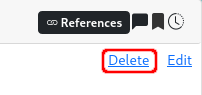
After clicking on delete you’ll be asked for confirmation.
Note
Entities cannot be deleted if they are needed by other entities, for example as a reference. See Understanding the Edit Mode for details on how to check whether an entity is in use before deleting it.
Make a property into a list#
Learnings
How to change a property to hold multiple values (list Property)
To change whether a property is a list or not, follow these steps:
Find the property you want to change.
Activate the Edit Mode in the top menu. A clickable “Edit” button appears on the property.
Click the “Edit” button. A dialog for editing the property shows up.
Click the “list” checkbox to change the status.
Click “Save” to save your changes, or abort with the “Cancel” button.
Add properties to an existing RecordType#
Learnings
How to add properties to an existing RecordType using drag and drop
Find the RecordType you want to change.
Activate the Edit Mode in the top menu. A clickable “Edit” button appears on the RecordType.
Click the “Edit” button. A dialog for editing the RecordType shows up.
Drag and drop existing properties and RecordTypes from the toolbox onto the RecordType’s target area.
Click “Save” to save your changes, or abort with the “Cancel” button.
Remove properties from an existing RecordType#
Learnings
How to remove a property from a RecordType
Find the RecordType you want to change.
Activate the Edit Mode in the top menu. A clickable “Edit” button appears on the RecordType.
Click the “Edit” button. A dialog for editing the RecordType shows up.
Click on the “Trash” icon to remove a property.
Click “Save” to save your changes, or abort with the “Cancel” button.